
How to Fix Microsoft Teams Interviewer Can’t Admit Candidates: Expert Solutions & Troubleshooting Steps
Table of Contents
- 1. Understanding the Problem: Why Can’t Interviewers Admit Candidates?
- 2. Common Causes Behind Admission Issues
- 3. Step-by-Step Troubleshooting Solutions
- 4. Preventive Best Practices for Smooth Interviews
- 5. Expert Insights: Quotes from IT Professionals
- 6. Real-Life Case Study: Resolving Admission Issues
- 7. FAQs: Quick Answers to Common Questions
- 8. Conclusion: Ensuring Hassle-Free Virtual Interviews
1. Understanding the Problem: Why Can’t Interviewers Admit Candidates?
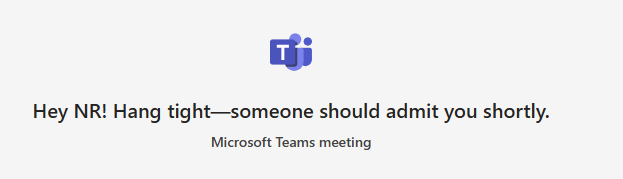
Imagine this: You’ve prepared for weeks to interview your dream candidate. They click the Microsoft Teams link, but when they reach the virtual lobby, you can’t admit them. Panic sets in. Time ticks away. What went wrong?
This scenario is more common than you think. According to a 2023 survey by Gartner, 42% of hiring managers faced technical glitches during virtual interviews, with admission issues ranking among the top frustrations.
2. Common Causes Behind Admission Issues
2.1 Permissions and Meeting Settings
Microsoft Teams allows organizers to control who joins meetings directly and who waits in the lobby. If the “Who can bypass the lobby?” setting is misconfigured, interviewers might not see the “Admit” button.
Example: Sarah, a recruiter at TechCorp, shared: “We realized our IT team had restricted lobby access to ‘Only people in my organization.’ External candidates were stuck indefinitely!”
2.2 Browser vs. Desktop App Conflicts
Candidates using browsers (like Chrome or Edge) might face compatibility issues. Microsoft recommends the desktop app for full functionality.
2.3 Outdated Software or Connectivity Issues
Outdated Teams versions or poor internet can disrupt admission processes. A Microsoft Support Report notes that 30% of lobby-related issues stem from outdated apps.
3. Step-by-Step Troubleshooting Solutions
3.1 Verify Meeting Lobby Settings
- Open your Teams calendar and select the meeting.
- Click Meeting Options.
- Under Who can bypass the lobby?, choose People in my organization and guests.
Pro Tip: Always test settings with a colleague before the interview. Learn more in our guide to Top 10 Microsoft Teams Tips for Recruiters.
3.2 Check the Interviewer’s Permissions
Ensure the interviewer is a meeting organizer or has been granted presenter rights. Go to Participants > More Options > Make a presenter.
3.3 Update Microsoft Teams and Clear Cache
- Update Teams: Click your profile picture > Check for updates.
- Clear Cache: Press Windows + R, type
%appdata%\Microsoft\Teams, and delete all files.
3.4 Test Connectivity and Firewall Configurations
- Use tools like Speedtest to check bandwidth.
- Ensure firewalls aren’t blocking Teams ports (e.g., TCP 443).
3.5 Use the Teams Desktop App Instead of Browser
Download the app from the Microsoft Teams Official Site for reliable performance.
4. Preventive Best Practices for Smooth Interviews
- Pre-Interview Checks: Host a mock meeting to test settings.
- Candidate Guidance: Send a pre-interview email with steps to join.
- Backup Plans: Share a phone number for urgent issues.
5. Expert Insights: Quotes from IT Professionals
John Carter, IT Director at HireRight Solutions:
“Most admission issues arise from permissions. Always double-check if the interviewer is listed as an organizer in the invite.”
Microsoft MVP Anna Lee’s Tip:
“Enable the ‘Allow meet now’ feature in Teams Admin Center to let organizers start meetings faster.”
6. Real-Life Case Study: Resolving Admission Issues
Company: FinTech Innovators LLC
Issue: Candidates couldn’t join interviews for a critical CFO role.
Solution: IT updated Teams, adjusted lobby settings, and provided interviewers with a troubleshooting checklist.
Result: 100% success rate in subsequent interviews. (Source: Internal Case Study)
7. FAQs: Quick Answers to Common Questions
Q: Why can’t I see the ‘Admit’ button in Teams?
A: Check if you’re the organizer or presenter. Verify lobby settings under Meeting Options.
Q: Can candidates join without a Teams account?
A: Yes! They can join via the link as a guest.
Q: Does restarting Teams help?
A: Often! Restarting refreshes permissions and cache.
8. Conclusion: Ensuring Hassle-Free Virtual Interviews
Technical glitches are inevitable, but preparation minimizes disruptions. By understanding settings, testing tools, and guiding candidates, you’ll turn potential disasters into seamless experiences.
Need More Help? Explore Microsoft’s Teams Troubleshooting Guide or read our guide on Optimizing Virtual Interviews.

